
Premium Document Hub for The Executive Centre
1. Welcome to Your Premium Document Hub
To support your business, The Executive Centre has partnered with Lexmark to provide a powerful, secure, and remarkably simple printing solution.
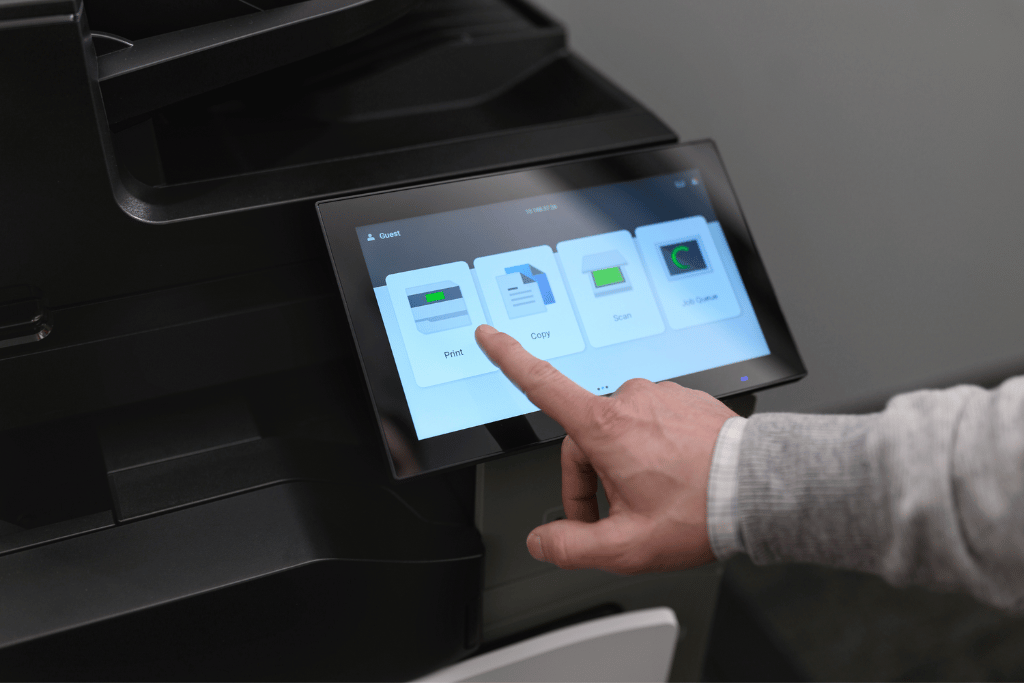
We have equipped your centre with our latest multifunction printers, featuring an intuitive, tablet-like touchscreen that makes every task effortless. This state-of-the-art system is designed for maximum uptime and security, allowing you to focus on what matters most: your work.
2. Features at Your Fingertips
This enterprise-grade solution provides a full suite of document capabilities, all accessible through a single, unified system.
Confidential Print Release
Our cloud-based system ensures your documents remain private. Jobs are held in your personal, secure queue until you release them with your PIN at the printer of your choice.
Professional Quality & Speed
Produce vibrant, high-quality documents and copies in both A3 and A4 formats. With fast output speeds, your materials are ready when you are.
High-Speed, Intelligent Scanning
Digitize documents in seconds. Our devices capture both sides of a page in a single pass and can send them directly to your email, streamlining your workflow.
Print Anywhere, From Any Device
Once configured, you can print from your primary computer to the single “Lexmark Cloud Printer” and collect your documents from any Lexmark device within The Executive Centre.
3. Simple One-Time Setup Guide
Follow these 4-steps to connect your computer to the secure print network.
Step 1: Download the Installer
Step 2: Run the Installation
Locate & Extract the File
Find the downloaded file in your ‘Downloads’ folder.
- On Windows: Right-click the file and select “Extract All…”.
- On macOS: Double-click the file to create a new folder.
Launch the Installer: Open the new folder and double-click the setup application.
- Administrator Approval: Your computer’s security may require an administrator password to authorize the installation. This is a standard security measure. If prompted, please enter your password or contact your IT support.
Step 3: Activating Your Secure Account
Begin Account Activation
- Once the installation is complete, your web browser will automatically open the Lexmark Cloud login page. If it does not open, please navigate to https://idp.eu.iss.lexmark.com
Activate & Secure Your Account
1. Check Your Email: Look for a welcome email from Lexmark Cloud (sent from no-reply@iss.lexmark.com) with the subject “Your new account is ready.”
2. Log In with Your Temporary Password:
- On the login page in your browser, enter your email address and the temporary password provided in the welcome email.
- You will be required to create a new, permanent password immediately upon your first login. This is a mandatory step to secure your account.
Please note: The permanent password you create here is for logging into the web portal. It is different from the 6-digit PIN you will use at the printer.
Step 4: Test Your First Secure Print
Know Your Secure PIN
- The Executive Centre’s operations team will provide you with a 6-digit PIN code. This PIN is your personal key to unlock all device functions. You will use it at the printer’s touch panel to Print, Scan, Copy, and Fax securely.
Print to the Cloud
- Open any document and select Print. From your list of printers, choose the “Cloud Print Management”. Your job is now sent to your secure personal queue, not to a specific printer.
Release Your Document at the Printer
- Walk up to any Lexmark printer at your convenience.
-
- On the touch panel, select “Print Release.”
- Enter your 6-digit PIN to log in.
- Your list of pending jobs will appear. Select the document(s) you wish to print and tap “Print.”
Setup is complete! You can now enjoy secure and flexible printing from any of your configured devices.
Support & Assistance
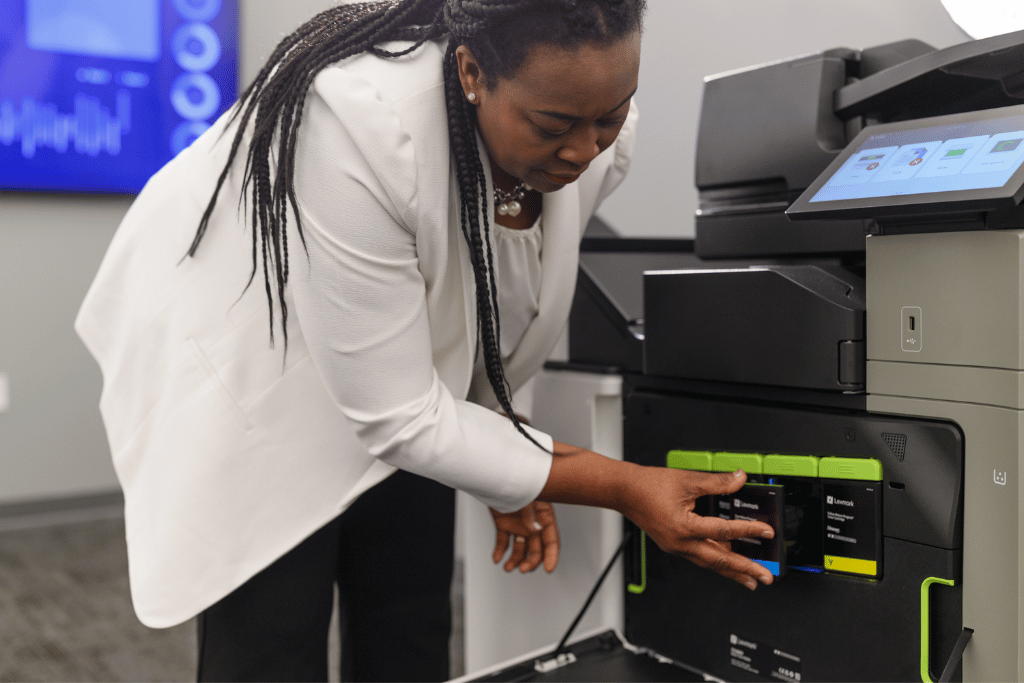
Should you require any assistance with installation, account access, or using the printers, please do not hesitate to speak with the on-site Operations Team at The Executive Centre. They are fully trained and equipped to provide immediate support for all your document needs.